
On this page
You remember a word in the document, like a booking number or a name, but not the file name. Here is how to find it.
Search inside one open PDF
- Open the PDF in the Files app.
- Tap the … button (or the search icon, depending on the app).
- Tap Find, or start typing in the search field.
- Type your word. Use the arrows to jump between matches.
This only searches the PDF you have open.
Search text in screenshots and photos
iPhone can read text in images (Live Text).
- Open the Photos app.
- Tap Search.
- Type a word that appears in the picture, for example "gate" or "invoice".
Photos shows screenshots and pictures that contain that word. This works for images, not for PDFs in the Files app.
Search across all your files
The search bar in the Files app finds files mainly by their name. If you don't remember the name, it often won't find the file.
Search inside every file at once
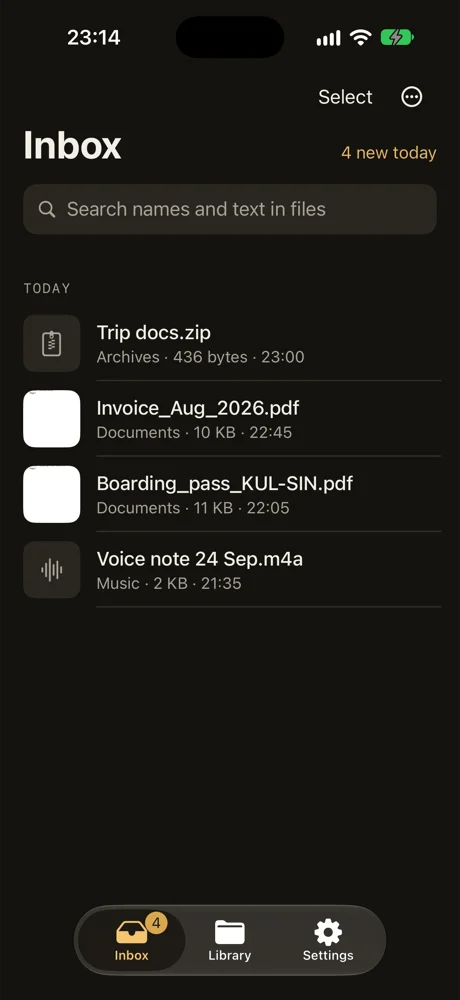
DropMate reads the text inside your PDFs, screenshots and Office files on your iPhone, so you can type "gate" and find the boarding pass, or "invoice" and find the right PDF, even when the file is called IMG_4021.
The text is read on the device. Your files are never uploaded. Search inside files is part of DropMate Pro; the app is free for your first 20 files.