On this page
An attachment in an email isn't really on your phone. It stays inside the message, so finding it later means remembering who sent it and when. Saving it to the Files app takes a few seconds and makes it searchable.
In Apple Mail
Save a PDF or document
- Open the email.
- Touch and hold the attachment.
- Tap Save to Files.
- Pick a folder, like iCloud Drive › Receipts, and tap Save.
Or tap the attachment to open it, tap the share button (the square with an arrow), then Save to Files.
Save a photo
- Touch and hold the image in the email.
- Tap Save Image to put it in Photos, or Save to Files to keep it with your documents.
Save several attachments at once
If an email has several photos, Mail may show Save All Images at the bottom of the message. For documents, save them one at a time, or open each and use Save to Files.
In Gmail
- Open the email in the Gmail app.
- Tap the attachment to preview it.
- Tap the share button, or ⋯ at the top, and choose Save to Files. Choose Save Image for photos.
There may also be a button to save the file to Google Drive. That keeps it in your Drive, not on your iPhone. You can still reach it from Files if the Google Drive app is turned on under Browse.
In Outlook
- Open the email in the Outlook app.
- Tap the attachment to preview it.
- Tap the share button, or ⋯, and choose Save to Files or Save Image.
Where saved attachments end up
- Save to Files: the folder you picked. If you didn't choose one, check Recents in Files first.
- Save Image: the Photos app, at the date the photo was taken.
- Opened in another app, like Books or Adobe Acrobat: inside that app.
Tips that save time later
- Keep a few folders and use them. Receipts, Travel, Work, Home. Anything that doesn't fit can be deleted.
- Don't save everything. If you'll only read it once, leave it in the email.
Save attachments without picking a folder every time
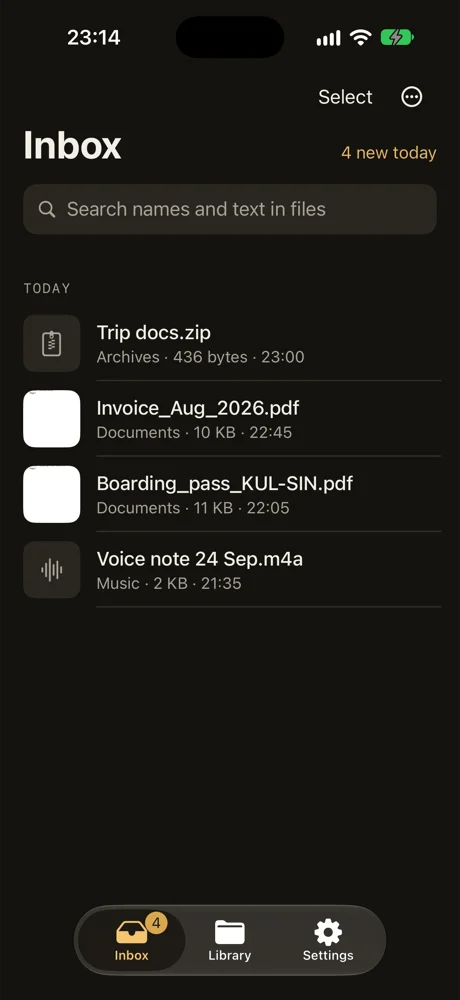
With DropMate, you share the attachment to DropMate instead. In the share sheet, tap DropMate. It lands in one inbox with your Safari downloads and AirDrops. Later, swipe left to keep it: DropMate suggests a folder from the file's name and text, like Receipts for an invoice, and moves it into that folder in the Files app.
With Pro, you can search the text inside saved PDFs, so a booking number or invoice total finds the right file.
Common questions
Where do email attachments go on iPhone?
Nowhere until you save them. They stay inside the email. Once you tap Save to Files, they go to the folder you pick in the Files app.
Why don't I see Save to Files?
Scroll the share sheet down: Save to Files is in the list of actions below the app icons. If an attachment hasn't finished downloading, wait for it to load first.
Does deleting the email delete the saved attachment?
No. A file saved to Files or Photos is a separate copy, so it stays when you delete the email.