
On this page
"Storage Almost Full" usually doesn't mean you need a new phone. It means old files are hiding somewhere. Start with the biggest ones.
1. See what is using space
Open Settings, then General, then iPhone Storage. Wait a moment for the list to load. Apps are sorted by size, biggest first.
2. Offload apps you rarely use
In iPhone Storage, tap an app and choose Offload App. The app is removed but your data stays. Reinstalling brings everything back.
You can also turn on Offload Unused Apps at the top of the same screen.
3. Clear big attachments in Messages
In iPhone Storage, tap Messages, then Review Large Attachments. Swipe left to delete videos and files you don't need.
4. Empty the Downloads folder
Open Files, then Browse, then Downloads. Sort by Size. Old videos, ZIP files and installers are often hundreds of megabytes.
5. Empty Recently Deleted
- Photos: Albums, then Recently Deleted, then Delete All.
- Files: Browse, then Recently Deleted, then Delete All.
6. Check your largest videos
In Photos, open Albums, then Videos. A single long 4K video can be several gigabytes.
Find forgotten files faster
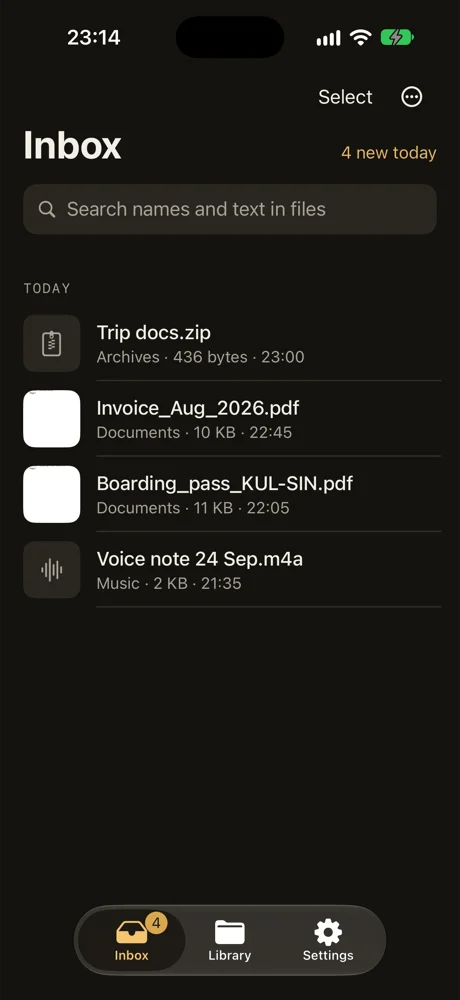
DropMate lists the biggest files you haven't opened in 30 days, from Downloads, AirDrop and everything else you saved. Tick the ones you don't need and delete them in one go. They stay in Recently Deleted for 30 days in case you change your mind.